Bottom line:
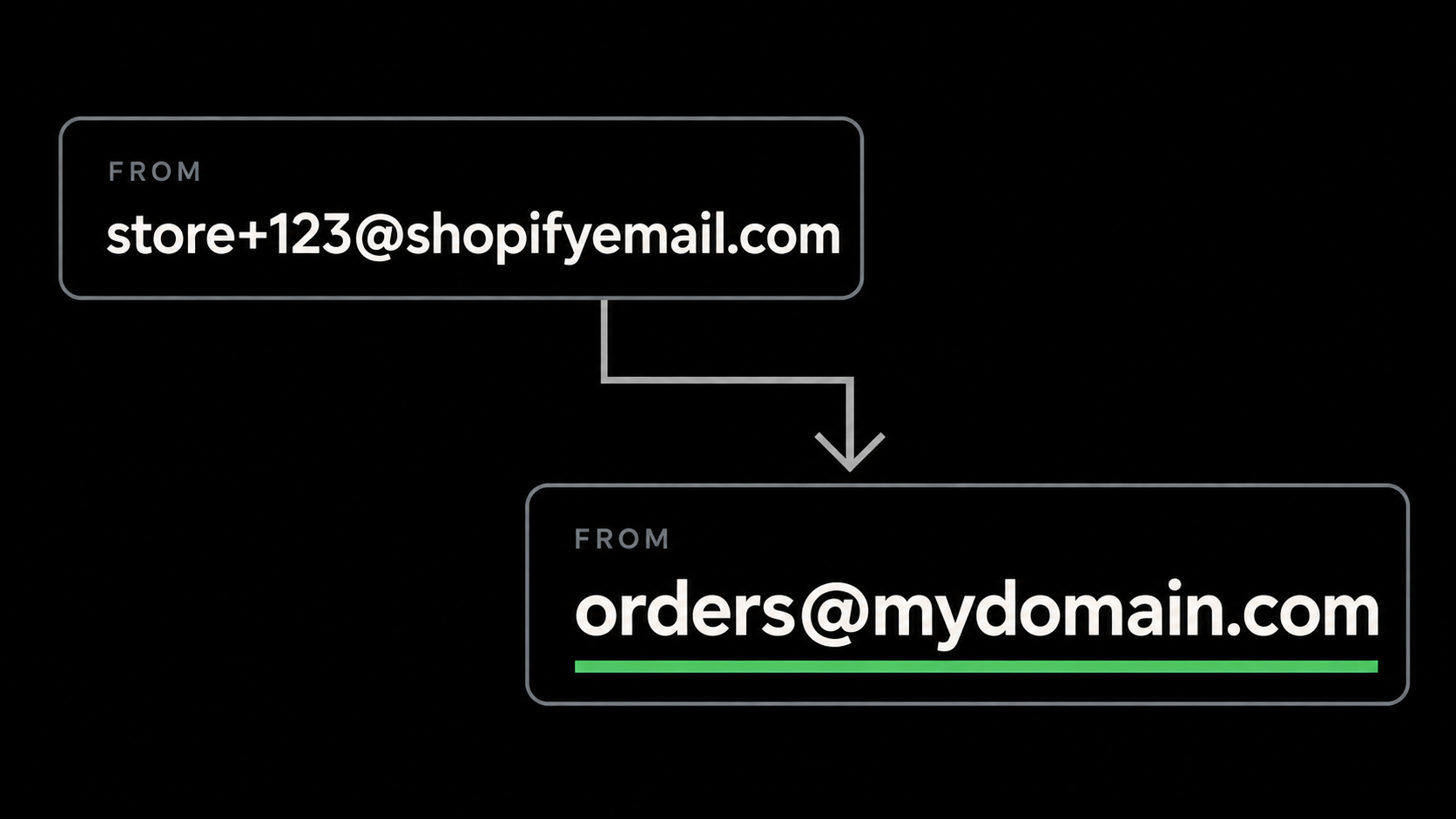
- Your business emails should come from your domain. Customers will be more comfortable with emails from
orders@mybusiness.comthanstore+123@shopifyemail.com. - Customers should be able to reply directly. Questions about an order should reach your business inbox without customers having to find another way to contact you.
- Setup is simple and usually takes about five minutes. A recognizable sender address helps customers trust your emails and reach you with questions.
Sending order confirmations from your own business address helps customers recognize your emails instead of mistaking them for spam. It also lets customers reply when they have a question about their purchase. This guide shows you how to set up both in Shopify.
To change your Shopify sender email, go to Settings > Notifications, enter your business email address, then complete the domain setup below.
1. Use a business email address that receives replies
Start with an address you can already receive email at. Send it a test message from your personal account and check that it arrives.
If you have an existing business mailbox, you can use that address. If your domain is managed by Shopify, you can also create a forwarding address under Settings > Domains > your domain > Email forwarding. Forwarding sends incoming messages to an inbox you already use.
Forwarding does not create a separate mailbox. When you reply from your personal inbox, customers can see that personal address. To send your own replies as orders@mybusiness.com, use an email service such as Google Workspace or Purelymail that supports sending from your domain.
2. Change the sender email in Shopify Notifications
- Open Settings > Notifications in Shopify.
- Enter your business address in Sender email.
- Click Save.
Use the Sender email setting here, rather than Store email under General. Store email is where Shopify contacts you about your account.
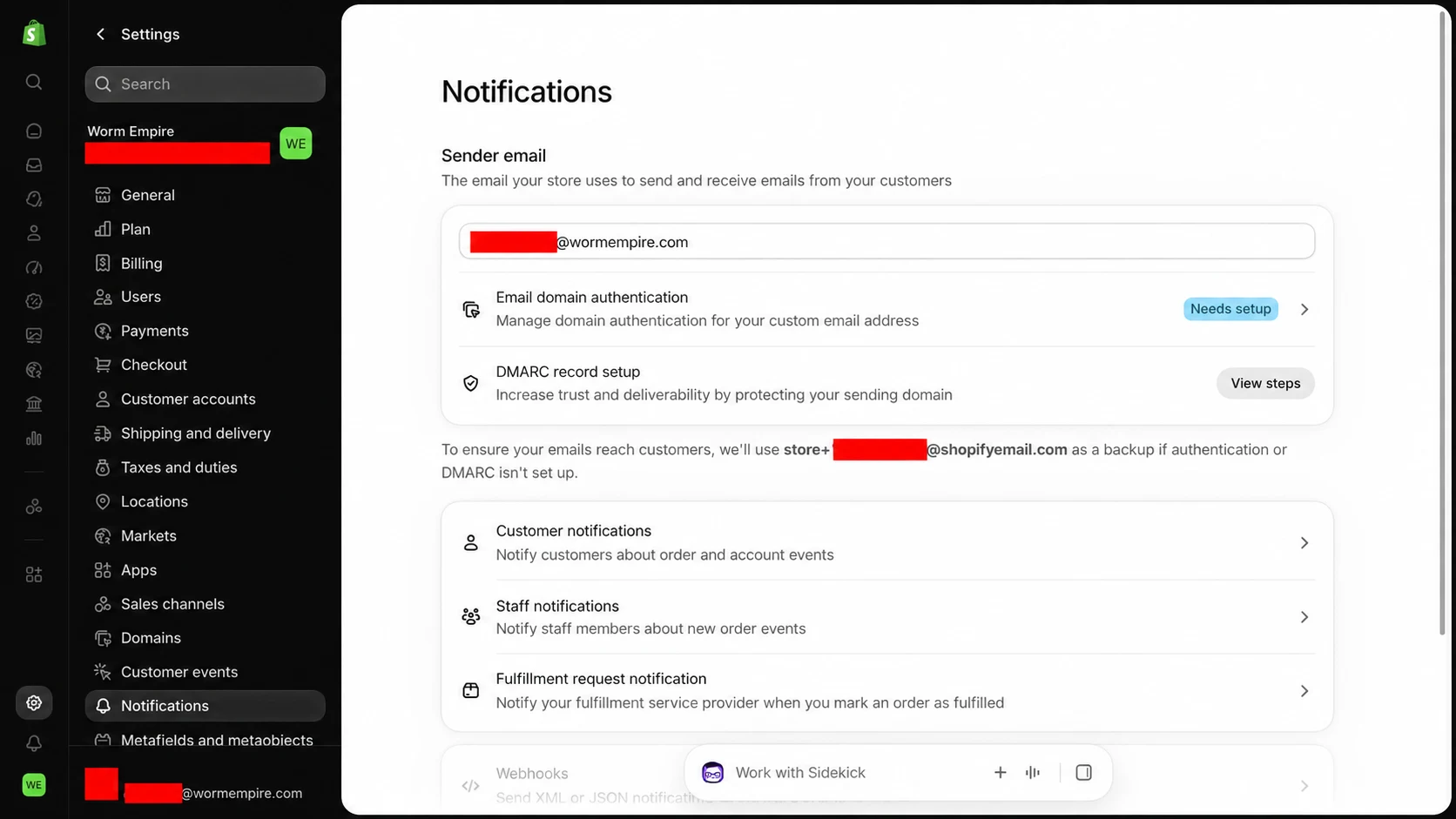
If Email domain authentication says Needs setup, open it. Shopify will show you the settings it needs before it can send from your business address. Until this and the DMARC step below are complete, Shopify may use its own backup sender address.
3. Give Shopify permission to send from your domain
Shopify gives you a list of entries to add to your domain settings. These entries are called CNAME records. You copy them from Shopify, rather than choosing the names or making up the values yourself.
Open the account where you manage your domain and look for DNS or Manage DNS. This may be with a company such as Cloudflare or GoDaddy, rather than the company hosting your website.
- Open Email domain authentication in Shopify's Sender email section.
- Keep Shopify's list open and open your domain settings in another tab.
- Add an entry for each row in Shopify's list. Choose CNAME as the type, then copy the Name and Value exactly as Shopify provides them.
- Save every entry in the list.
The guide uses these example values for the first entry:
| Field | What goes here |
|---|---|
| Type | CNAME |
| Name | mailerx7q |
| Value | 7b4e9a2c6f18.p294.email.myshopify.com |
mailerx7q is not an email address or inbox. It represents the record name Shopify supplies for this setup. The CNAME record points it to the destination in Value, shown above as 7b4e9a2c6f18.p294.email.myshopify.com. These records help email services verify that Shopify can send for your business. Customers still see the sender address you chose, such as orders@wormempire.com.
The full name of that first record is mailerx7q.wormempire.com. Many domain providers add wormempire.com automatically, so the Name field only needs mailerx7q. Follow your provider's format and avoid adding the domain twice.
The names and destinations in this guide are examples. Copy every entry from your own Shopify screen, using the names and values Shopify gives your store.
For Cloudflare, GoDaddy or IONOS, Shopify may offer Authenticate automatically instead. Approve the changes, then use Return to Shopify to start its check. You still need to check DMARC below.
Your store needs an active paid plan for this setup. Development stores and stores on Pause and Build cannot complete these steps.
The next two sections are examples for different DNS providers. Follow only the example for the provider you use. If you use another company, add Shopify's records in that company's domain settings. If you have already added the records, manually or through automatic setup, skip these examples and continue to step 4.
Example: Amazon Route 53
Use this example if your domain's DNS settings are managed in Amazon Route 53.
Open Route 53 > Hosted zones, select your domain, then choose Create record. Fill in the form using the values from Shopify:
- Record name: the name Shopify provides, such as
mailerx7q. Route 53 shows your domain after the field, so you do not need to type it again. - Record type: select CNAME.
- Alias: leave this switched off.
- Value: paste Shopify's destination. Our example uses
7b4e9a2c6f18.p294.email.myshopify.com. - TTL (seconds): leave
300, as shown below. - Routing policy: leave Simple routing selected.
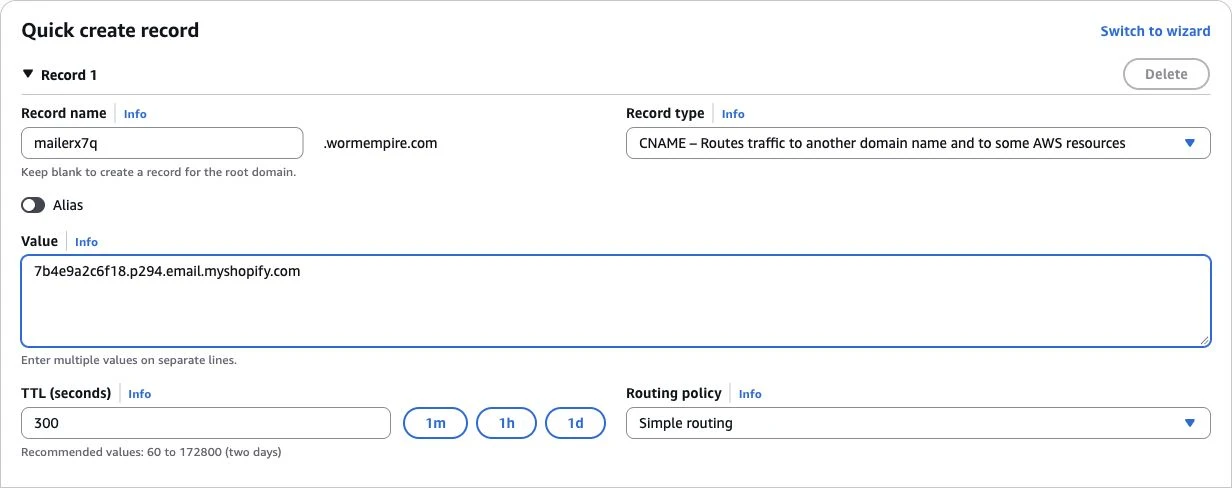
Choose Create records to save, then repeat for the remaining entries in Shopify's list. Once they are all saved, continue to step 4.
Example: Cloudflare
Use this example if your domain's DNS settings are managed in Cloudflare.
Select your domain in Cloudflare, open DNS > Records, then choose Add record:
- Type: select CNAME.
- Name: enter the name Shopify provides, such as
mailerx7q. - Target: paste Shopify's destination, shown here as
7b4e9a2c6f18.p294.email.myshopify.com. - Proxy status: choose DNS only, shown by the gray cloud. Leave the orange cloud switched off for these email records so Shopify can check the destination.
- TTL: leave Auto selected.
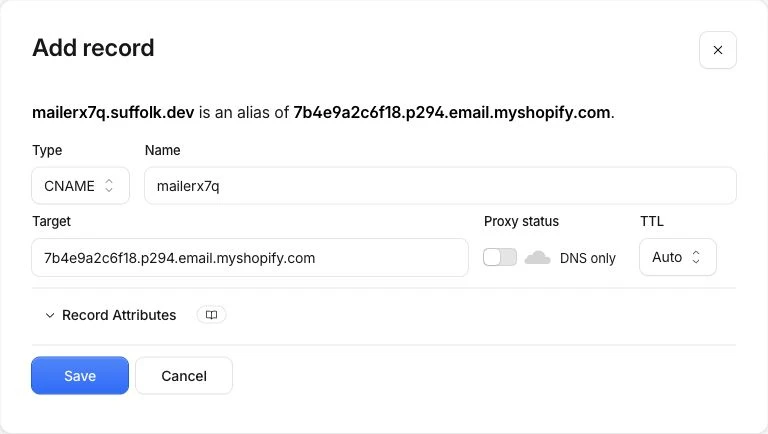
Click Save, then repeat for the remaining entries. This screenshot uses suffolk.dev, while the Route 53 example uses wormempire.com. Select your own domain and copy the values from your own Shopify store. Once all the entries are saved, continue to step 4.
4. Check that your settings were saved correctly
Google Admin Toolbox Dig lets you check the entries you just saved. You do not need to sign in to use it.
- Copy a Name from Shopify and add your domain after it. In our example,
mailerx7qbecomesmailerx7q.wormempire.com. - Enter that full name in the tool's Name field and select CNAME.
- Look for TARGET in the result. It should match the Value Shopify supplied for that row. In our example, that is
7b4e9a2c6f18.p294.email.myshopify.com. A dot at the end of the returned name is normal. - Repeat for the other rows in Shopify's list. Use each name exactly as shown, including any
_domainkeypart.
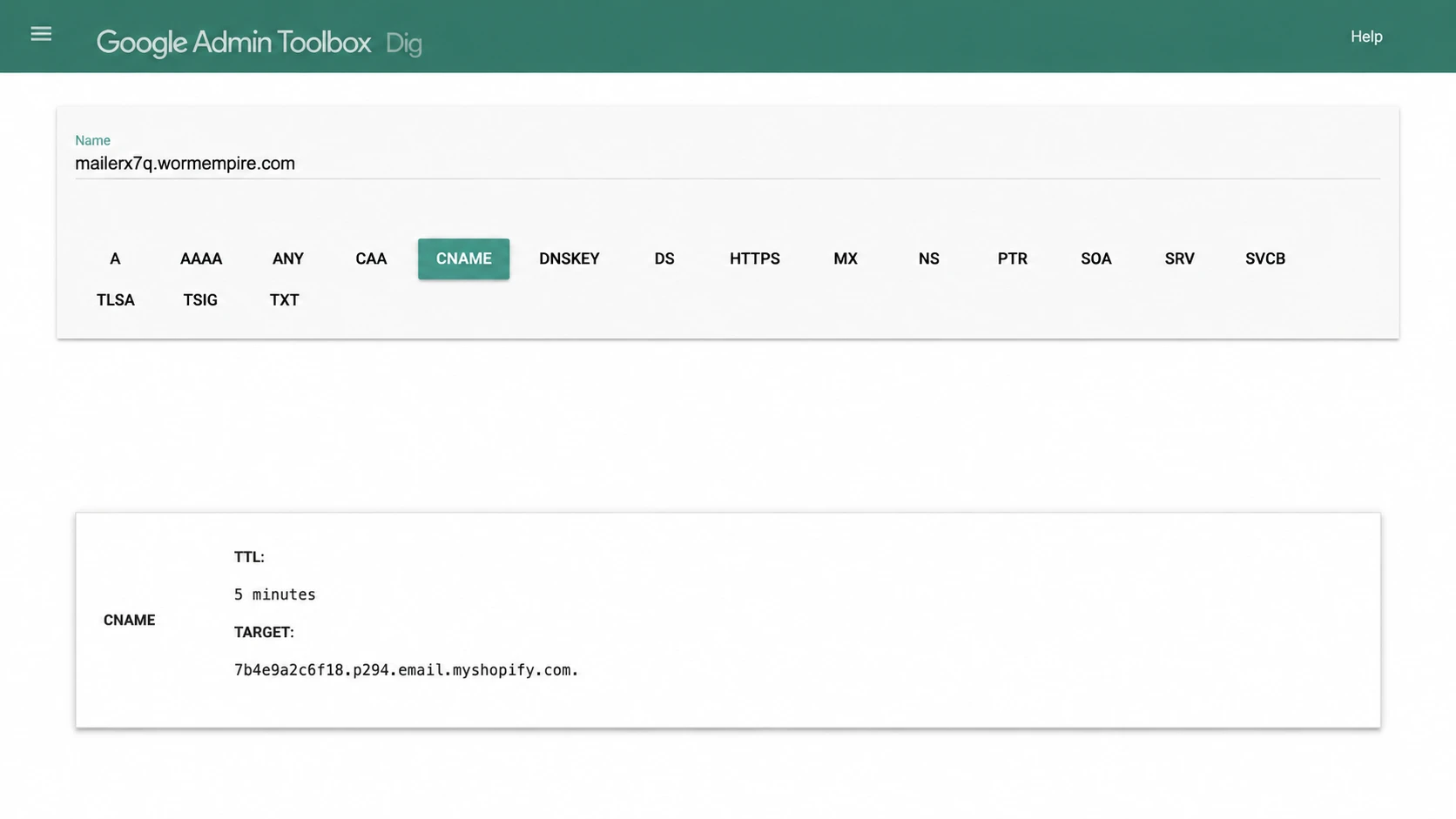
If the tool does not find an entry, check the name you entered and give it a few minutes before trying again. If TARGET shows a different value, correct the entry in your domain settings. Shopify will do its own check in the next step.
5. Wait for Shopify to show Authenticated
Return to Shopify and click I updated DNS records. The status may change to Propagating, which means Shopify is still checking the changes.
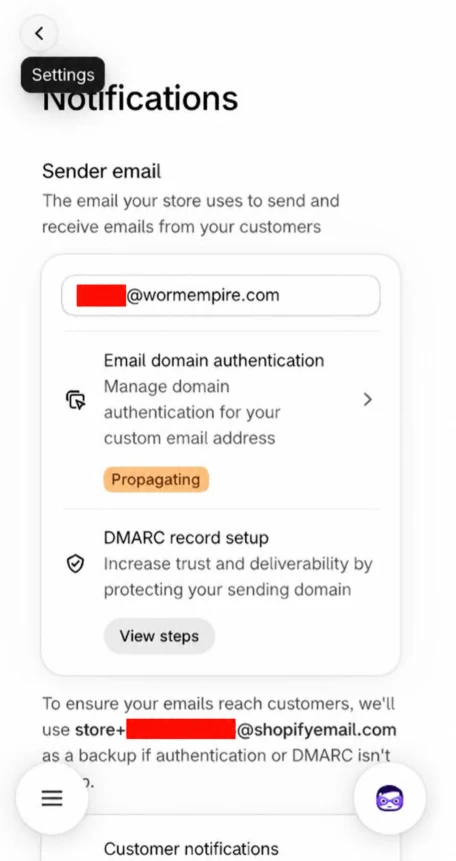
Check again after about five minutes. When Shopify finds the entries it needs, the status changes to Authenticated. If it still has not finished, compare every Name and Value with Shopify's list, correct any mistakes, and run the check again.
6. Check DMARC even when the domain says Authenticated
DMARC is an email safety setting for your domain. It tells services such as Gmail how to handle messages that claim to come from your business but cannot be verified.
Shopify checks this setting before using your business address. Authenticated does not mean DMARC is set up. If you bought your domain somewhere other than Shopify, its automatic setup leaves DMARC as a separate step.
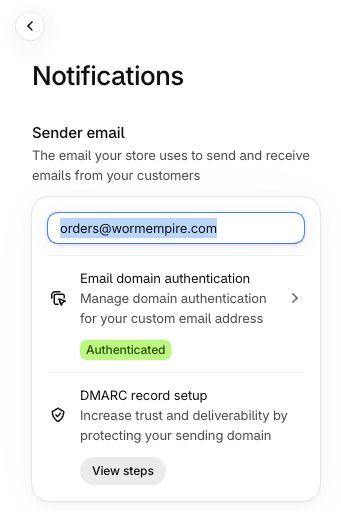
In your domain's settings, look for an entry with the type TXT and the name _dmarc. If one already exists, use that entry rather than adding another. Do not replace existing email protection settings just to match the example below.
If there is no existing entry, add Shopify's starter setting:
| Field | Value |
|---|---|
| Type | TXT |
| Name | _dmarc |
| Value | v=DMARC1; p=none; |
For Worm Empire, the full name would be _dmarc.wormempire.com. If your provider adds the domain automatically, enter only _dmarc in Name.
The starter setting does not block suspicious messages on its own. Stronger protection can be configured once the services sending your business emails have been checked. Google's DMARC guidance explains that next step.
If you bought your domain through Shopify, Shopify sets up these email settings automatically. Otherwise, complete both the CNAME entries and DMARC so Shopify can use your business address.
Your domain must also have only one DMARC record.
“Displaying your store's sending email”
7. Test the order confirmation and the reply
Go to Settings > Notifications > Customer notifications > Order confirmation. Open Preview, then Send test email. Shopify sends the test to the email address you use to log in.
Open the message and check the sender's email address, not just the business name above it. It should show your domain. Reply to the message and confirm that it reaches your business inbox. Also check that the confirmation is easy to read on a phone.
Shopify's notification testing instructions cover the preview and test controls.
If Shopify still shows shopifyemail.com, check your domain settings
Go back to Shopify's list and compare every Name and Value with the entries you saved. Check that there is only one _dmarc entry and that it allows Shopify's emails. After correcting an entry, give Shopify time to check it again.
These settings help email services recognize your messages as legitimate. Checking a test confirmation and replying to it shows you what customers will experience.
We can set up your business email and store integrations
We help businesses connect their websites, email and online stores. If you need help getting Shopify order emails working with your domain, contact us and tell us where you manage your domain and email.